
From Analog Notebook to Searchable Database
The Free Google Drive Solution

Ditch the department photocopier and expensive apps. Your phone, paired with Google Drive, can turn your paper notebook into a fully indexed, searchable PDF. Here’s how.
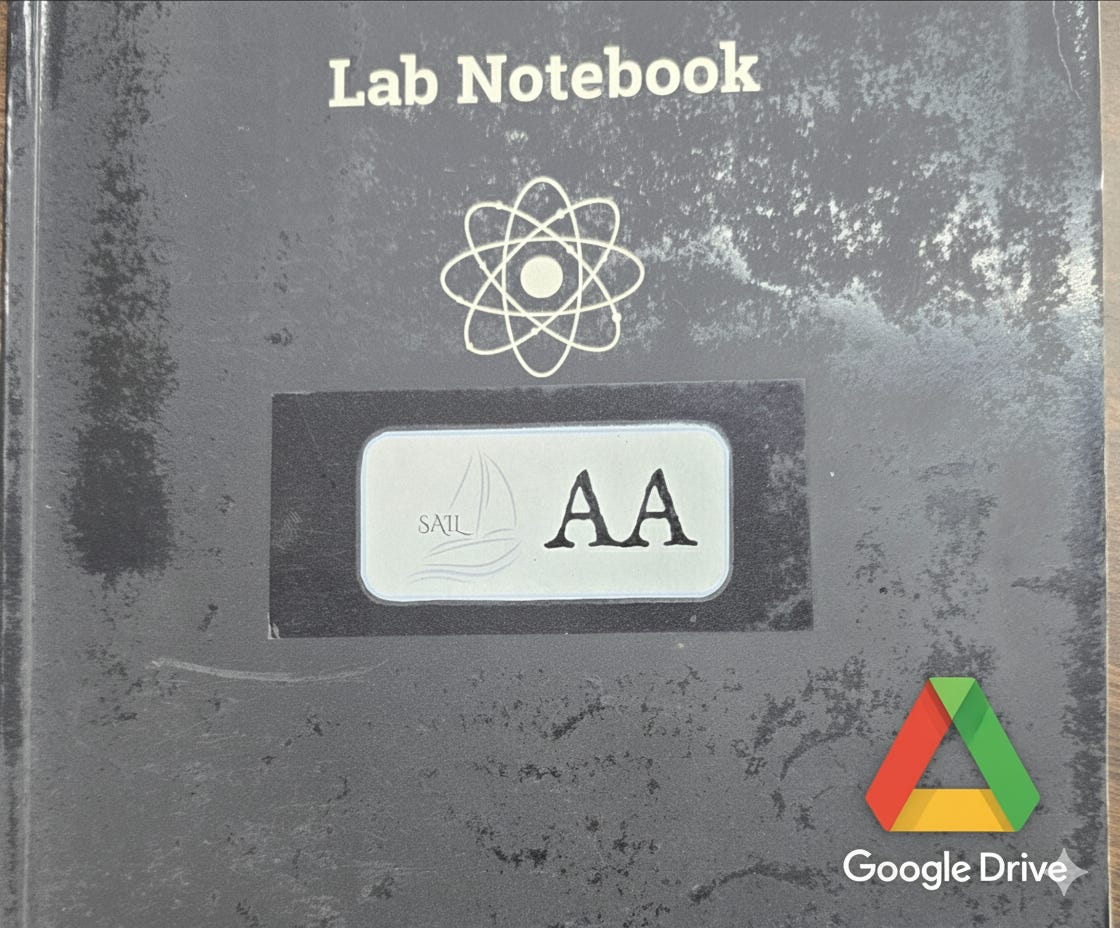
For many researchers, the physical laboratory notebook is a sacred object. It’s the chronological, unchangeable record of every experiment, every observation, and every breakthrough. But let’s be honest: it’s also a 200-page, paper-bound data silo.
This creates a familiar problem. We all know we should archive our notebooks. For most of us, this means the dreaded trek to the department photocopier to make a “dumb” (i.e., unsearchable) PDF, or worse, just a photocopy. It’s a chore we put off, and soon we’re months or even years behind, leaving volumes of priceless, unsearchable data sitting on a shelf.
A new ecosystem of specialized mobile scanning apps has emerged to solve this, promising to “flatten” the curved pages of your notebook and process the images. These are often excellent, but many lock their most useful features—like batch processing and OCR—behind a monthly subscription.
But what if the most powerful, integrated, and free solution is already on your phone?
I’m talking about the Google Drive app.
Hidden inside the app you likely already use is a built-in scanner function that is a hidden powerhouse. It is purpose-built to solve our exact use case. It doesn’t just take pictures; it’s an integrated system that can:
Capture & “Flatten” pages, correcting for distortion and shadows.
Batch Process hundreds of pages into a single, clean PDF.
Automatically OCR the entire document, making every word—even your handwriting—searchable.
It effectively turns your analog notebook into a fully indexed, digital database. And it costs nothing.
The Simple, Powerful Workflow
Here is the step-by-step process to digitize and index your entire research notebook. The latest versions of the Google Drive app have made this even faster by automating the batching process.
Step 1: Start the Scan
Open the Google Drive app on your phone (iOS or Android). Tap the large, multi-colored + (New) button, and then select Scan.
Your camera will open, ready to capture.
Step 2: Automated Batch Scanning
This is the critical update. Instead of manually capturing each page, position your camera over the first page. The app will automatically detect the page’s edges, capture the scan, “flatten” it (correcting for distortion), and enhance the contrast.
After the first scan is captured, it’s added to an image stack (you’ll see a small preview). The camera stays active.
Just turn to the next page in your notebook. The app will automatically detect the new page, capture it, and add it to the stack. You can continue this rapid, continuous process—page-turn-scan, page-turn-scan—for as many pages as you need. There’s no need to press “add page” or “capture” for each one.
Step 3: Review and Save as PDF
Once you’ve captured your last page, tap the button on-screen that shows your page count (this stops the automatic capture). You can now swipe through the pages you’ve scanned to ensure they all look good. When you’re satisfied, tap Save.
It will ask for a file name and a location in your Google Drive. Give it a clear, “future-you” friendly name (e.g., “Lab Notebook Vol. 4 - 2025”) and save it. The entire stack is saved as a single PDF document.
Step 4: The Magic: Automatic OCR & Indexing
This is the part that changes everything. The moment you hit ‘Save,’ Google’s servers get to work on your PDF. In the background, they are performing Optical Character Recognition (OCR) on the entire document.
You don’t have to do anything. You don’t have to click a button or pay for a service.
After a few minutes, the contents of that PDF are now fully indexed. Your handwritten notes are now data.
This means you can go to the Google Drive search bar and type any keyword, phrase, or concept—”Project Demeter soil analysis,” “adsorption isotherm data,” or a specific lot number—and Google Drive will find that exact PDF of your scanned notebook, often highlighting the very section where your search terms appear.
A New Information Retrieval System
This simple workflow transforms your archiving process from a passive, “just-in-case” chore into an active, powerful research tool. That pile of notebooks on your shelf isn’t just a backup anymore; it can become your new, fully searchable database.
Bonus: Analyze Your Notebook in Chrome with Gemini
The workflow doesn’t just stop at storage. Once your notebook is in Google Drive, you can open the PDF in the Google Chrome browser. The built-in PDF viewer now integrates with Gemini, allowing you to interact with your own research notes in powerful new ways.
You can search the document (thanks to the OCR) and then ask Gemini to “summarize the experiments from this week” or “create an audio overview of this project’s goals,” all right in your browser. This turns your static archive into an active, intelligent research assistant.
Give it a try. That analog-digital divide you’ve been meaning to cross might just be a few taps away.
Attribution: This article was developed through conversation with Google Gemini.
Remarkable. Thanks for sharing, Bill.